
> beginner's guide
How SpriteLab works
Everything you can do, what's worth trying first and what it costs — no game-art experience needed.
- step 1
Describe a sprite
Try it 3× right on the homepage — no account.
- step 2
Sign up free
Get 10 credits + 10 bonus. No card.
- step 3
Animate & collect
Animate your favourites and keep them in a project.
01
Create a sprite from one sentence
Describe what you need — SpriteLab draws it, removes the background and snaps pixel art to a clean grid.
- 01
Pick an asset type
Characters, creatures, weapons, items, tiles, icons… The type tells the AI how to frame and size the sprite.
- 02
Describe it
What it is, colours and materials — e.g. “iron sword with a red gem in the hilt”. Any language works.
- 03
Choose a style
12 styles. Pixel 16-bit is the favourite; Hand Painted, Anime, Chibi and Isometric are a click away.
- 04
Standard or HD
Standard costs 1 credit and takes ~10 s. HD costs 3 credits for finer detail.
worth trying
- Stuck for ideas? Hit “Surprise me”.
- Hover any sprite in Explore and press Try to reuse its prompt.
- Characters and creatures can be drawn from the side, front or top-down.
- Every result is saved to Assets as a transparent PNG.
02
Animate anything — not just people
Pick a sprite and a motion. The AI looks at your sprite first, so a dragon breathes fire, a dog trots and a car drives.
- 01
Choose a sprite
Any sprite from your Assets — or upload your own.
- 02
Pick a motion
Idle, walk, attack, jump… plus moves suggested for that exact sprite. Or describe your own.
- 03
Pick the frame count
4, 6, 9 key poses from 6 credits. “Smooth motion” doubles the frames with AI in-betweens. Idle loops are rigged from your sprite for just 2 credits.
- 04
Download
A sprite sheet PNG, every frame separately and a GIF preview — ready to slice in Unity or Godot.
worth trying
- Idle is a calm breathing loop — the feet never step.
- Water and lava tiles animate into seamless loops.
- Preview the loop at any speed before you download.
03
Keep your game's assets in one place
A project is a folder for one game. Generate into it, keep the good ones, download everything as a pack.
- 01
Create a project
One per game — “Dungeon crawler”, “Space shooter”…
- 02
Generate into it
Accept or decline each result. Declined sprites stay in Assets, out of your pack.
- 03
Auto-sorted folders
Accepted sprites file themselves into Characters, Enemies, Weapons, Items… Auto-sort tidies everything again.
- 04
Download the pack
The whole project as one ZIP, folders included. Projects are free.
worth trying
- Open the generator from a folder and new sprites land in that folder.
- Everything you ever generated is also in Assets.
04
What things cost
Credits are the only currency. You always see the price on the button before you click.
- 01
Free to start
3 tries without an account, then 10 free credits when you sign up — no card.
- 02
Failed? Refunded
If a generation fails, its credits go straight back to your balance.
- 03
Track your usage
The Usage page lists every generation and what it cost.
- 04
Top up any time
Monthly plans from £5 for 250 credits, or one-off packs that never expire.
| What | Cost |
|---|---|
| Sprite — Standard | 1 credit |
| Sprite — HD | 3 credits |
| Idle loop (rigged, 24 frames) | 2 credits |
| AI animation — 4 frames· smooth (8 frames): 11 credits | 6 credits |
| AI animation — 6 frames· smooth (12 frames): 15 credits | 8 credits |
| AI animation — 9 frames· smooth (18 frames): 17 credits | 10 credits |
| Variation of a sprite | 1 credit |
| Remove background· Starter plan and up | 1 credit |
| Upscale — pixel-perfect | free |
| Upscale — AI 2× / 4×· paid plans | 1–2 credits |
| Projects & ZIP export | free |
05
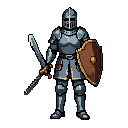
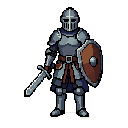
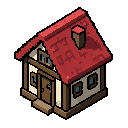
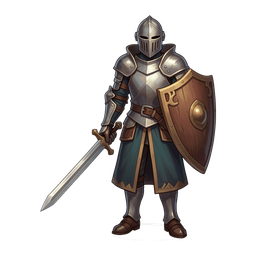
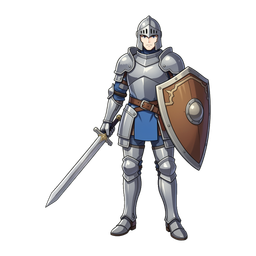
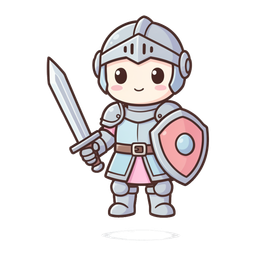
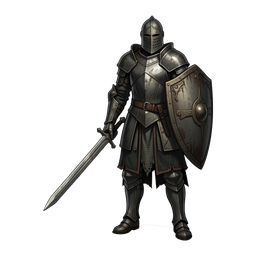
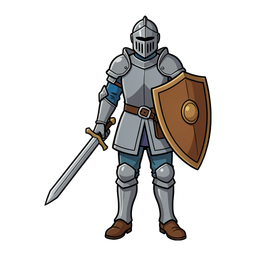
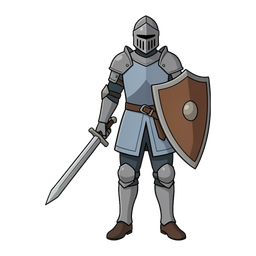
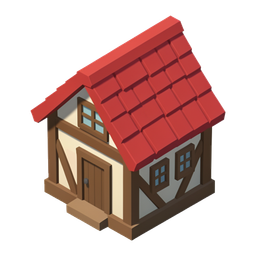
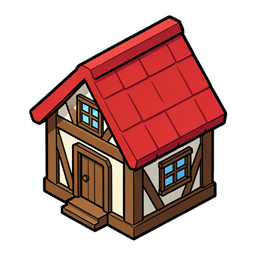
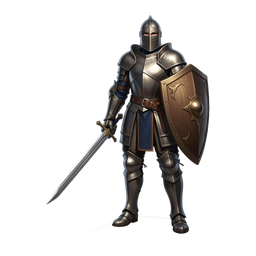
12 art styles
The same prompt in a different style gives a completely different look. Pick one per game and stick to it — your sprites will match.
06
Remove background & upscale
Two helpers for images you already have — including ones you didn't make with SpriteLab.
Remove BG
Upload any image and get it back with a transparent background. 1 credit, Starter plan and up.
Upscale
Pixel-perfect upscale keeps pixel art razor sharp and is free. AI upscale 2× / 4× adds detail to painted art (paid plans).
07
Use it in your engine
Sprites are standard transparent PNGs and sprite sheets are equal-size frames in a row — every engine understands them.
Unity & Godot step by step
Import settings, slicing sprite sheets and pixel-perfect filtering.
Read the guidesYours to use commercially
Use everything you generate in free or paid games. No attribution required.
08
Words you'll see
New to game art? These are the only terms you need.
- Sprite
- A single game image with a transparent background — a character, an enemy, a sword.
- Sprite sheet
- All frames of an animation side by side in one PNG. Game engines cut it into frames.
- Frame
- One picture of an animation. More frames = smoother motion.
- Tile
- A square image that repeats edge to edge to build floors, walls and levels.
- Asset
- Any file your game uses. In SpriteLab: sprites, sheets and tiles.
- Credit
- What you spend to generate. The price is always shown on the button first.
Ready to make your first sprite?
10 free credits + 10 launch bonus when you sign up. No card needed.