
How to Make a Sprite Sheet with AI
Turn one AI-generated sprite into a game-ready sprite sheet: pick a motion, choose frame count, export equal-size frames and import them into your engine.
· 7 min read
The short answer
To make a sprite sheet with AI, first generate a single character sprite on a transparent background, then animate that exact sprite into a motion such as a walk cycle and export the frames as one image of equal-size cells. The equal frame size is what matters: it lets Unity, Godot or GameMaker slice the sheet automatically by cell size.
General image generators struggle with this because they redraw the character from scratch for every frame, so the face, colours and proportions drift. A workflow built for game assets keeps the character fixed and only changes the pose. Below is the full process, from the first sprite to a looping animation in your engine.
What a sprite sheet actually is
A sprite sheet is a single image that contains every frame of one or more animations, laid out on a grid. The engine loads one texture and shows a different rectangle of it each frame, which is cheaper than loading dozens of separate files and keeps all frames perfectly aligned.
There are two common layouts. A horizontal strip puts every frame of one animation in a single row: a 6-frame walk at 64×64 pixels becomes a 384×64 image. A grid sheet stacks several animations as rows (idle, walk, attack…) in one larger texture. Strips are the simplest to import and to reason about; you can always pack them into an atlas later.
- Every frame must be the same width and height.
- The character should stand on the same baseline in every frame, so feet do not jitter.
- The background must be transparent, not white or a checkerboard baked into the pixels.
- Frames are read left to right, in playback order.
Step 1: generate a clean base sprite
The base sprite is the reference every frame will be built from, so get it right before animating. Use a side view for platformers and side-scrollers, and a clear, full-body pose with arms slightly away from the body so limbs are readable once they start moving. Avoid capes, long weapons or effects that run off the edge of the canvas.
In SpriteLab you describe the character in a sentence, pick one of the 12 art styles (for example Pixel 16-bit or Hand Painted) and get a transparent PNG. Pixel art results are snapped to a real pixel grid with a limited palette and a consistent outline, which makes later frames easier to keep consistent.

Step 2: choose the motion and frame count
Frame count is a trade-off between smoothness, file size and cost. Classic pixel art games use surprisingly few frames: 4 for an idle breath, 6 to 8 for a walk cycle, 3 to 6 for an attack. A walk cycle needs at least the contact, down, passing and up poses for each leg to read as walking.
SpriteLab's Animate tool offers idle, walk, run, attack, jump, cast, hurt, fly, a turnaround or a custom motion you describe, and it suggests motions that fit the sprite you picked. You choose 4, 6 or 9 key poses; smooth mode adds AI in-between frames for 8, 12 or 18 frames total. An idle loop costs 2 credits; a 6-frame walk costs 8 credits and a smoothed 12-frame walk costs 15.
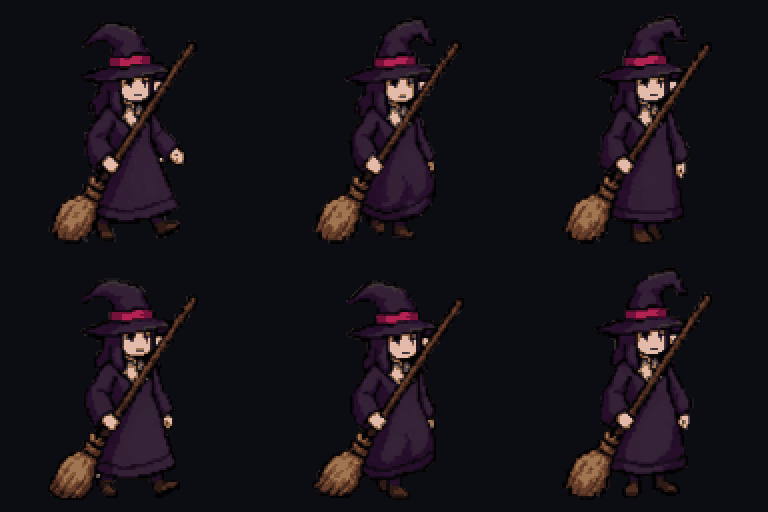
Step 3: export and check the sheet
Export the animation as a horizontal sprite sheet: one row of equal-size frames on a transparent background. SpriteLab also gives you the individual frames as a ZIP and a GIF preview, which is handy for sharing or for engines and tools that prefer separate files.
Before importing, check three things: the image width divided by the number of frames is a whole number, the last frame flows back into the first without a pop, and the feet stay on the same line. If a single frame is off, it is usually faster to regenerate the animation than to repair it by hand.
Step 4: import it into your engine
Because every frame is the same size, slicing is mechanical. In Unity you slice by cell size in the Sprite Editor; in Godot 4 you add the sheet to an AnimatedSprite2D with 'Add frames from sprite sheet'. The Unity workflow looks like this:
- 01Download the sprite (PNG) or the sprite sheet from SpriteLab.
- 02Drag the file into your Unity project's Assets folder.
- 03Select it and set Texture Type to 'Sprite (2D and UI)'. For pixel art set Filter Mode to 'Point (no filter)' and Compression to 'None'.
- 04For a sprite sheet set Sprite Mode to 'Multiple', open the Sprite Editor, choose Slice → Grid By Cell Size and enter the frame width and height (every SpriteLab frame has the same size), then Apply.
- 05Select the sliced frames and drag them into the Scene — Unity creates an Animation clip; adjust the sample rate (e.g. 8–12 fps).
Frame rate and polish
Most 2D sprite animations play between 8 and 12 frames per second. A walk cycle with 6 frames at 10 fps loops roughly every 0.6 seconds, which matches a relaxed walking pace; raise the fps for running. Match the movement speed of the character in code to the stride so the feet do not appear to slide.
For pixel art, always turn off texture filtering (Point in Unity, Nearest in Godot) and scale by whole numbers. Smoothing filters blur the pixel edges and make a crisp sheet look like a low-quality JPEG.
Frequently asked questions
Can AI make a sprite sheet from one image?
Yes. The reliable approach is to generate one base sprite first and then animate that same sprite into frames, rather than prompting for a whole sheet at once. SpriteLab's Animate tool does this and exports a horizontal sprite sheet, a frames ZIP and a GIF.
How many frames should a walk cycle have?
Six to eight frames is the common range for 2D games. Four frames can work for small pixel sprites; 12 or more gives smoother motion for larger, higher-resolution characters.
What size should sprite sheet frames be?
Any size works as long as every frame is identical in width and height. Common pixel art sizes are 32×32, 48×48 and 64×64; higher-resolution games often use 128×128 or larger.
Does SpriteLab make 8-direction sprite sheets?
No. SpriteLab animates a sprite in the view it was generated in and can produce a turnaround, but it does not output complete 8-direction movement sets.